Import contacts with Excel
The DuoContactUpload.xltm template sends contacts from an Excel sheet straight to a DUO list, without going through a CSV file. It only works in Excel for Windows (the macros don't run on Mac or in Excel online).
Before you start, see the common rules in Import contacts. If you'd rather use a CSV, see Import with CSV.
Windows with a non-English regional format
In this version of the template, every button fails with API Returned Error when the Windows regional format is not English (for example, Portuguese), even with the right credentials. Until a fixed version is available, switch the regional format to English (United States) while you import: Settings → Time & language → Language & region → Regional format. Switch it back afterwards.
Before you start
-
Create an API key to use in the template instead of your account password. You can delete it when you're done, without touching the password.
- Under Settings → Users, open your user and click API Keys, at the bottom of the page.
- Click New API Key and give it a name (for example
excel). Leave Allowed source IP addresses blank to accept any source. Save. - Copy the key that appears. It is only shown once.
Your account password also works, if you prefer.
Step 1: download the template
On the list, click Add contacts → Multiple contacts using Microsoft Excel and download DuoContactUpload.xltm.
Step 2: unblock the file
Windows blocks macros in files downloaded from the internet. Before opening the template:
- In File Explorer, right-click
DuoContactUpload.xltmand choose Properties. - On the General tab, tick Unblock and click OK.
You only need to do this once.
Step 3: open a copy of the template
Right-click the file and choose New (on Windows 11, under Show more options). Excel opens a new workbook based on the template, leaving the original unchanged.
On the yellow SECURITY WARNING: Macros have been disabled bar, click Enable Content.
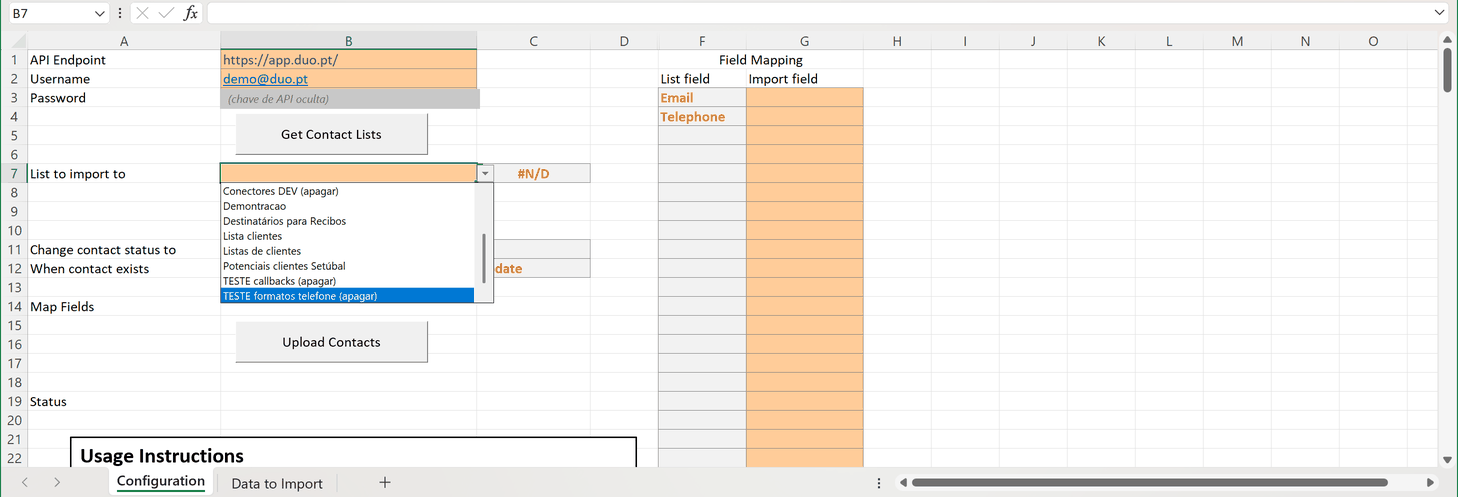
Step 4: choose the list
On the Configuration sheet:
- Username (B2): your DUO username.
- Password (B3): the API key.
- Click Get Contact Lists.
- In List to import to (B7), choose the list. The list ID appears next to it.
Step 5: paste the contacts
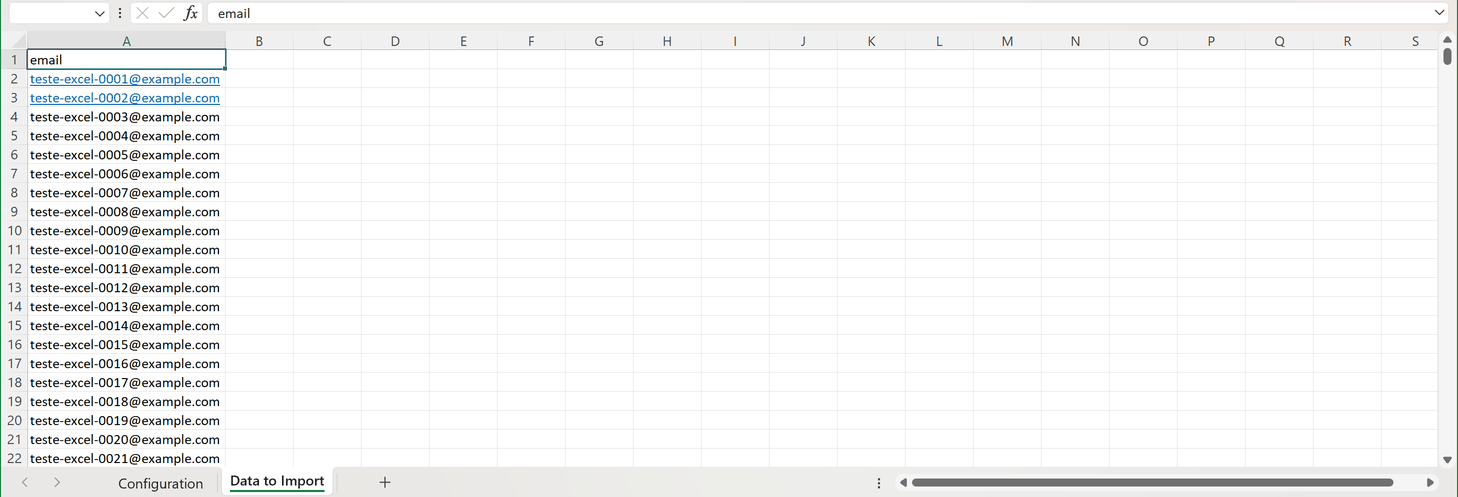
On the Data to Import sheet:
- row 1: the column names (for example
email,phone,name); - from row 2: one contact per row;
- no blank rows in between: the first blank row is read as the end of the data, and nothing after it is imported.
Phone numbers follow the common rules: digits only, optionally starting with + or 00.
Step 6: map the columns
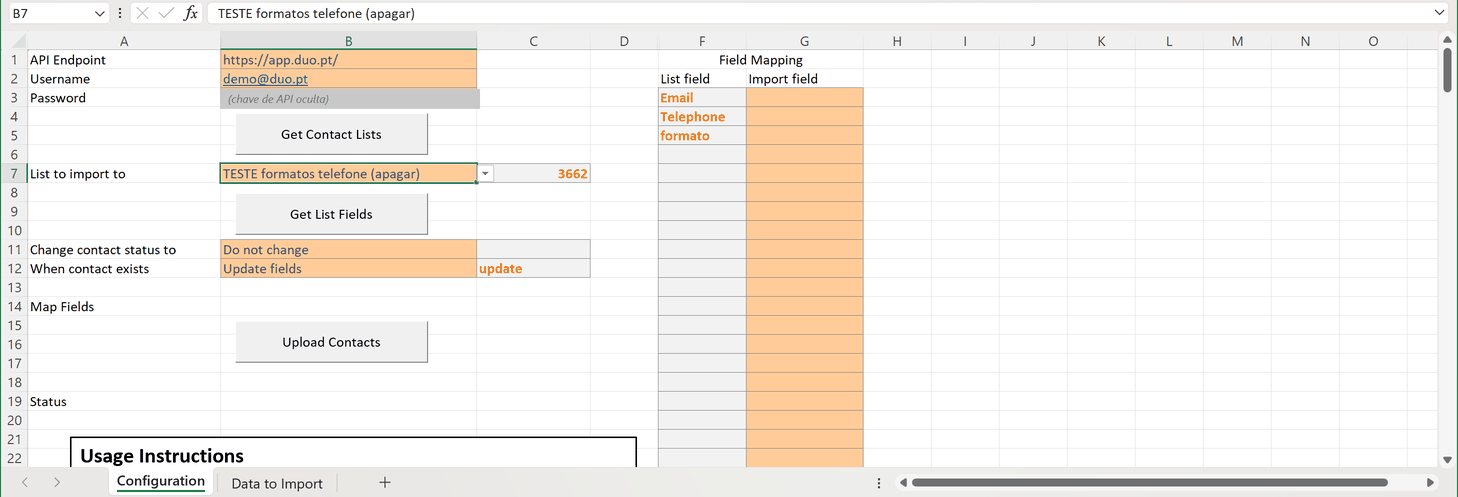
Go back to the Configuration sheet and click Get List Fields. The List field column (F) shows the list's fields: Email, Telephone and the custom fields.
In Import field (G), pick from the menu the Data to Import column that matches each field. You must map Email or Telephone. Fields left blank aren't imported.
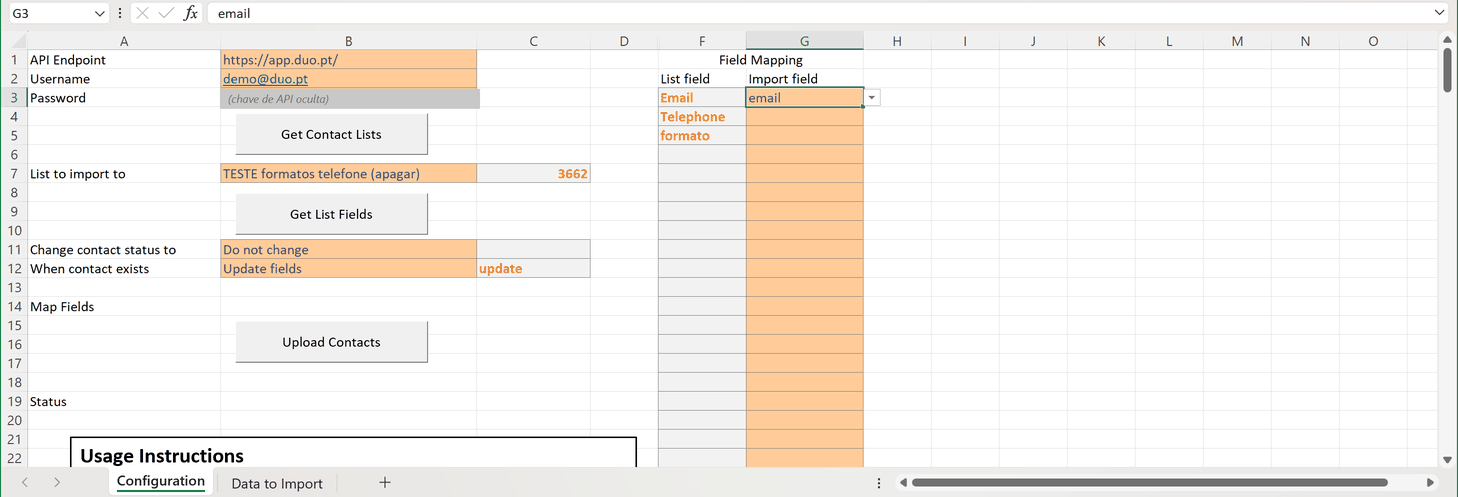
Below the list there are two more options:
- Change contact status to (B11): Do not change keeps the default status (new contacts are subscribed, or pending if the list requires confirmation). Subscribed, Pending and Unsubscribed apply that status to every imported contact.
- When contact exists (B12): Update fields overwrites the data of contacts already on the list (same email or phone); Ignore contact leaves them as they are.
Step 7: import
Click Upload Contacts. Status (B19) changes to Uploading... and then to Upload complete. A thousand contacts take a few seconds.
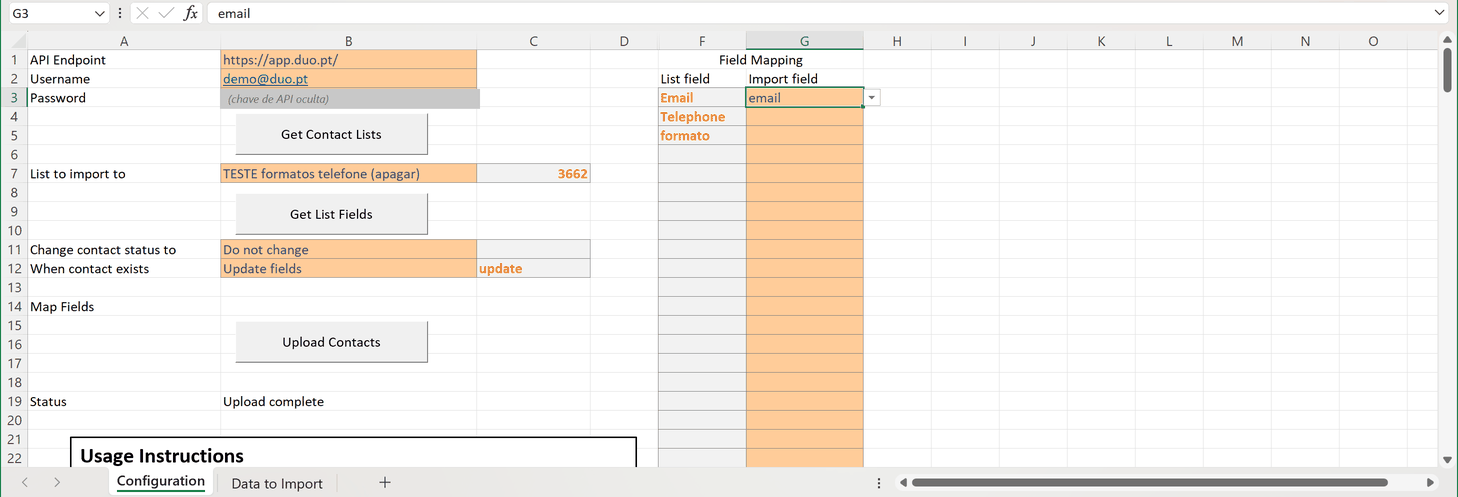
Check the total on the list's page in DUO. Close Excel without saving, or save it without the key in B3.
Troubleshooting
Red bar "SECURITY RISK: Microsoft has blocked macros from running". The file wasn't unblocked. Close Excel, do step 2 and open a new copy.
"API Returned Error", followed by "System Error &H80040002". Check the username and key in B2 and B3. If they're right, the problem is the Windows regional format: see the warning at the top of this page.
A box with just "400", and Status stays at "Uploading...". A row in Import field has a name that isn't in row 1 of Data to Import. Pick the name from the cell's menu and click Upload Contacts again.
Contacts are missing. Look for blank rows in the Data to Import sheet: nothing after the first one is imported.